
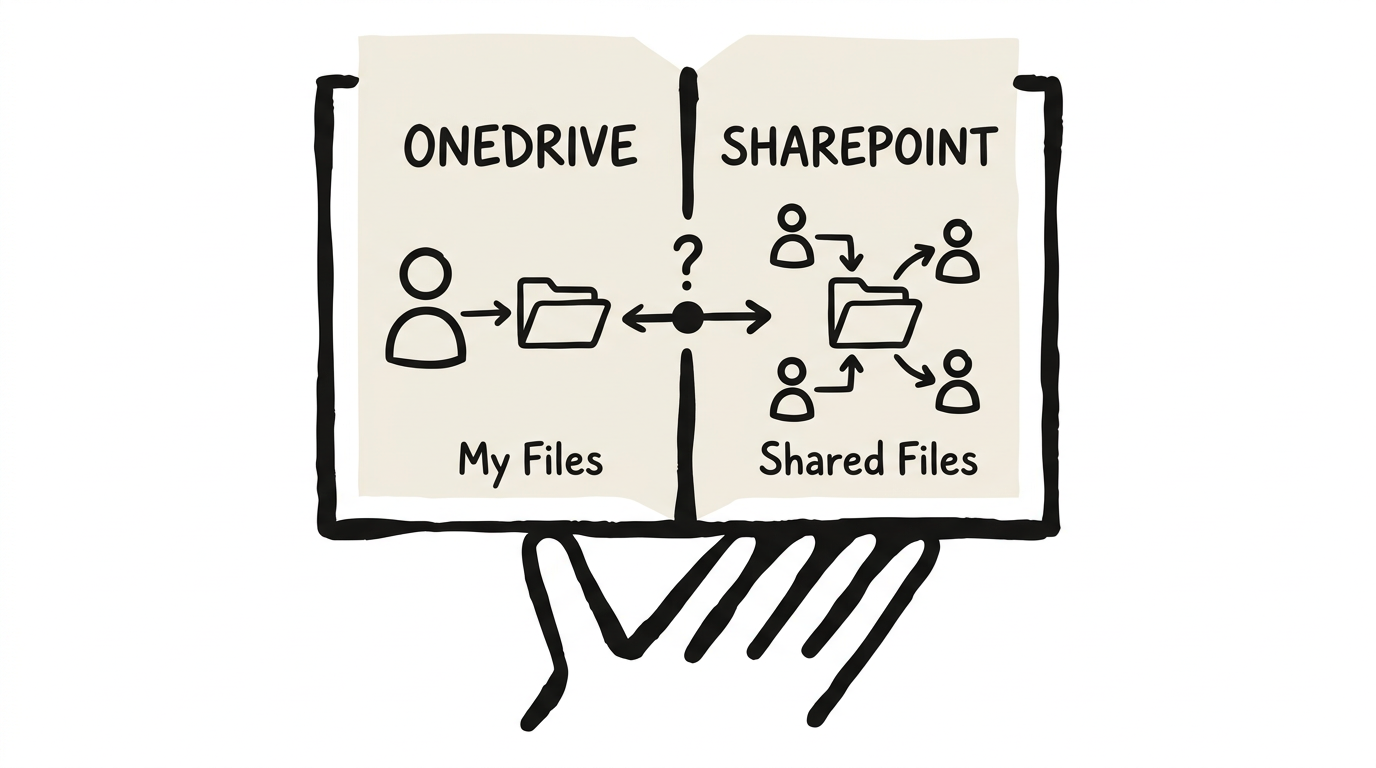
OneDrive is for your own work: drafts, notes and files only you need. SharePoint is for anything your team or organisation relies on: shared documents, policies, templates and project files. The quickest test is to ask whether anyone would need the file if you left tomorrow. If they would, it belongs in SharePoint or a Teams channel.
Every Microsoft 365 tenant has both. They both store files, sync to your desktop and let you share with colleagues, so it’s no surprise people mix them up. Microsoft has blurred the lines for years. But getting it wrong costs you: files disappear when people leave, permissions get out of hand, collaboration splinters across personal shares and governance falls apart.
Microsoft 365 Copilot raises the stakes, because where your files live shapes what Copilot can find and how good its answers are. This guide gives you the decision logic, not another feature-by-feature chart.
OneDrive is SharePoint underneath
This surprises a lot of people: OneDrive is SharePoint. It’s not a separate product. Under the hood, every OneDrive account is a personal SharePoint site collection. The files sync the same way, they use the same storage infrastructure, and they share the same compliance backbone.
Understanding this removes a lot of the mystique. OneDrive and SharePoint aren’t competing products. They’re two views of the same platform, designed for different jobs.
OneDrive is your personal workspace. It’s the digital equivalent of your desk drawer. Files stored here are private by default and owned by your user account.
SharePoint is the organisation’s workspace. It’s the digital equivalent of the shared filing cabinet, the department drive, the project repository. Files stored here are owned by the organisation and persist regardless of who comes and goes.
The distinction isn’t about features. It’s about ownership, audience, and lifecycle.
OneDrive vs SharePoint: side-by-side comparison
Here’s a quick reference before the decision framework. The figures come from Microsoft’s service descriptions as of March 2026, so check them against your own plan.
| Feature | OneDrive | SharePoint |
|---|---|---|
| Purpose | Personal file storage | Team and organisational file storage |
| Ownership | Individual user account | Site (persists when employees leave) |
| Default visibility | Private: only you | Shared: based on site permissions |
| Storage per user | 1 TB (most plans); up to 5 TB for E3/E5 with 5+ users | 1 TB + 10 GB per licence (pooled across org) |
| Max storage per site | 1 user = 1 OneDrive | 25 TB per site collection |
| Max file upload size | 250 GB | 250 GB |
| Max files per library | 30 million | 30 million |
| Permissions model | Basic sharing links | Granular: per site, library, folder or item |
| Custom metadata | No | Yes: columns, content types, managed metadata |
| Workflows (Power Automate) | Limited | Full integration |
| Compliance & eDiscovery | Basic | Advanced: retention policies, sensitivity labels, legal holds, Purview |
| Version history | Yes | Yes, with automatic or manual limits |
| Known Folder Move | Yes: Desktop, Documents, Pictures | N/A |
| Copilot visibility | You, plus anyone you’ve shared the file with | Anyone with access to the site |
| When user leaves | Retained for 30 days by default, then deleted | Files stay where they are |
| Best for | Personal drafts, backups, ad-hoc sharing | Team docs, policies, templates, org knowledge |
A simple framework for what goes where
After working across a lot of Microsoft 365 tenants, I’ve found the decision comes down to a single question:
If you left the organisation tomorrow, would anyone need this file?
If the answer is yes, the file belongs in SharePoint or Teams. If the answer is no, it belongs in OneDrive.
That one test resolves the vast majority of file placement decisions. But to make it more practical, think in three buckets:
Bucket 1: My files go in OneDrive. Personal drafts, notes, career documents, files you’re actively working on before they’re ready to share. These are your files. They live in your space.
Bucket 2: My team’s files go in Teams, which is SharePoint underneath. Project documents, shared spreadsheets, meeting notes, collaborative decks. These belong to the team. When you open a Microsoft Teams channel, the Files tab is a SharePoint document library. Use it.
Bucket 3: The organisation’s files go in SharePoint. Policies, templates, brand assets, published reports, HR documents, training materials. These belong to the company and need to outlive any individual employee.
This three-bucket model is the foundation of my free OneDrive vs SharePoint Playbook, which adds a full decision flowchart, 15 real-world scenarios and a one-page quick reference you can share with your team.
What OneDrive is good for
OneDrive is a personal productivity tool, and it’s very good at that job.
Personal file storage and backup. OneDrive Known Folder Move backs up your Desktop, Documents, and Pictures folders automatically. If your laptop dies tomorrow, your files are safe.
Working on drafts before sharing. You’re writing a proposal, refining a presentation, or pulling together research notes. These are your working files. Keep them in OneDrive until they’re ready for the team.
Quick, ad-hoc file sharing. You need to send a file to one colleague for a quick review. OneDrive sharing links work well for this, as long as it’s the exception rather than how the team works.
Cross-device access. OneDrive syncs across your desktop, laptop, phone, and tablet. Your personal files follow you everywhere.
Where it goes wrong. OneDrive becomes a problem when people use it as the primary collaboration space. When a team of five shares everything through one person’s OneDrive, that person becomes a single point of failure. If they leave, those files get deleted after a retention period (typically 30 days unless IT intervenes). This is one of the most common and most damaging mistakes I see in client environments.
What SharePoint is good for
SharePoint is built for team and organisational content, and its strengths are different from OneDrive’s.
Shared ownership and persistence. SharePoint content belongs to the site, not an individual. When employees leave, the files stay exactly where they are with all permissions intact.
Advanced permissions and governance. SharePoint lets you set permissions per site, library, folder or item. You can control who views, edits, and approves content. OneDrive has basic sharing; SharePoint has governance.
Metadata, views, and structure. SharePoint document libraries support custom columns, filtered views, content types, and metadata-driven organisation. This is how you turn a file dump into a structured information architecture.
Compliance and records management. Retention policies, sensitivity labels, legal holds, audit trails and eDiscovery all come through Microsoft Purview. OneDrive has basic compliance features, but SharePoint is where serious governance lives.
Workflow and automation. Approval workflows, Power Automate flows and document routing: SharePoint connects to the broader Microsoft 365 automation ecosystem in ways OneDrive simply doesn’t.
The organisational knowledge base. Policies, procedures, templates and brand guidelines: anything the organisation needs to access reliably belongs in SharePoint, not in someone’s OneDrive.
Where Microsoft Teams fits in
Teams adds a third layer of confusion, but it’s simple once you see how it’s built.
Every Microsoft Teams team creates a SharePoint site. Every channel in that team creates a folder in that site’s document library. When you upload a file to the Files tab in a Teams channel, you’re uploading to SharePoint.
Teams is the collaboration interface. SharePoint is the storage engine.
So your team’s working files belong in Teams channels, which means they’re in SharePoint. You don’t need to choose between Teams and SharePoint for team files. They’re the same storage seen through different windows.
The one exception is files shared in Teams chat (not channels). Chat-shared files go to the sender’s OneDrive. This catches many organisations off guard and it’s a common source of data loss when employees leave. If a file matters to the team, share it in a channel, not a chat.
Why file placement matters more with Copilot
Microsoft 365 Copilot changes the picture. When Copilot answers a question, drafts a document, or summarises a meeting, it searches across your Microsoft 365 environment for relevant content. The quality of Copilot’s output depends directly on what it can find and where.
Copilot can only find what a person has access to. When a colleague asks Copilot for the latest project brief, it can surface it from a SharePoint library they can open. If the brief sits in someone’s OneDrive and hasn’t been shared with them, Copilot won’t find it for them.
Poor file placement degrades AI quality for everyone. When critical organisational knowledge is scattered across individual OneDrive accounts, Copilot’s responses are incomplete. It can’t reference documents it can’t see. The result is weaker summaries, missing context, and AI output that feels disconnected from reality.
Sensitivity controls work best on well-placed content. Sensitivity labels and data loss prevention policies can stop Copilot from using confidential files, and they’re far easier to apply consistently to organised SharePoint libraries than to files scattered across personal drives.
If you’re rolling out Copilot, file placement is part of AI readiness as well as governance. I go deeper on this in why your SharePoint needs an information architecture before AI.
Five OneDrive and SharePoint mistakes I see in almost every engagement
Whether the organisation is tiny or enormous, the same patterns keep coming up.
1. Using OneDrive as the default team collaboration space. A manager creates a folder in their OneDrive, shares it with the team, and calls it done. This works until that manager goes on leave, changes roles, or leaves the company, and the whole team loses access.
2. Ignoring the Teams-SharePoint connection. Teams get created without any thought to the SharePoint site behind them. Files get uploaded to chat instead of channels. When someone needs a document six months later, it’s buried in a one-to-one chat that no one else can access.
3. No governance framework for file placement. Without clear organisational guidance, every employee makes their own decisions about where to save files. The result is sprawl: the same document in five places, and none of them the real one.
4. Migrating network drives to OneDrive instead of SharePoint. The old H: drive was personal, so OneDrive seems like the natural replacement. But the old shared network drive (the S: drive, the department drive) should map to SharePoint, not to someone’s OneDrive. I see organisations get this wrong constantly.
5. Not planning for employee departures. When someone leaves, their OneDrive is kept for 30 days by default. That’s configurable, but it’s often left alone. If no one acts within that window, the files are gone. SharePoint content, by contrast, stays in place indefinitely.
Each of these costs real time and money. The Playbook covers the ten most common pain points with a fix for each.
Practical scenarios: what goes where
To make this concrete, here are four scenarios I run into constantly:
“I need to share a file with one colleague for a quick review.” Save it in your OneDrive. Share a link with edit access. Once the review’s done, if the file has ongoing team value, move it to SharePoint or Teams.
“Our department needs a shared document library.” This is SharePoint. Create a SharePoint team site for the department, set up document libraries with appropriate metadata columns, and apply permissions at the site level. Don’t use a shared OneDrive folder.
“A colleague left and we lost access to their shared files.” This happens when team files lived in that person’s OneDrive instead of SharePoint. The fix going forward: any file that more than one person needs ongoing access to belongs in SharePoint or Teams. For immediate recovery, IT can access the departed user’s OneDrive within the retention window.
“We’re moving from a network file share to Microsoft 365.” Map your personal drives (H: drive) to OneDrive. Map your shared drives (S: drive, department drives) to SharePoint. Don’t dump everything into OneDrive, or you’ll recreate the same problems in the cloud.
Start with a one-page file storage policy
You don’t need a 50-page governance document to fix this. Start with a one-page file storage policy that answers three questions:
- Where do personal files go? OneDrive.
- Where do team files go? Teams channels (SharePoint).
- Where do organisational files go? SharePoint sites.
Communicate this to every employee. Pin it to your intranet. Include it in onboarding. Make it the default expectation, not a suggestion.
The free OneDrive vs SharePoint Playbook includes a ready-to-use one-page file storage policy, a governance blueprint and migration guidance across 14 chapters.
If you’d like help putting this in place across your tenant, along with getting Copilot working on top of it, that’s the kind of work I do in the AI Concierge.
Frequently asked questions
What is the difference between OneDrive and SharePoint? OneDrive is your personal file storage in Microsoft 365: private by default and tied to your user account. SharePoint is the organisation’s file storage: shared by default and owned by the site rather than a person. Both use the same underlying technology, but they do different jobs. OneDrive is for your files. SharePoint is for the organisation’s files.
Should I save files to OneDrive or SharePoint? Use a simple test: if you left the organisation tomorrow, would anyone need this file? If yes, save it to SharePoint or a Teams channel. If no, save it to OneDrive. Personal drafts, notes, and career documents belong in OneDrive. Team documents, policies, and shared resources belong in SharePoint.
Is OneDrive the same as SharePoint? Technically, yes. OneDrive is built on SharePoint. Every OneDrive account is a personal SharePoint site collection. They use the same storage, sync, and compliance infrastructure. The difference is in purpose and visibility: OneDrive is your private workspace, while SharePoint is the shared organisational workspace.
What happens to OneDrive files when an employee leaves? When someone’s account is deleted, their OneDrive is kept for 30 days by default, and IT can extend that. If no one retrieves the files within that window, they’re permanently deleted. This is why team files should live in SharePoint, where they persist regardless of employee turnover.
Does Microsoft 365 Copilot work with OneDrive and SharePoint? Yes, with both, and always within the person’s existing permissions. Copilot can use your own OneDrive files and anything shared with you, plus SharePoint content you have access to. If important documents sit in one person’s OneDrive and haven’t been shared, nobody else’s Copilot can find them, so content the organisation relies on belongs in SharePoint.
Where do Microsoft Teams files get saved? Files uploaded to a Teams channel are saved in that team’s SharePoint site. Files shared in a Teams chat are saved to the sender’s OneDrive. This matters, because channel files persist with the team, while chat files are tied to the individual who shared them.
How much storage do I get with OneDrive and SharePoint? OneDrive provides 1 TB per user on most Microsoft 365 plans, expandable to 5 TB for E3/E5 tenants with five or more users. SharePoint storage is pooled across the organisation: 1 TB base plus 10 GB per licensed user. Individual SharePoint sites can hold up to 25 TB. Both support a maximum file upload size of 250 GB.